A warm welcome to Hogwarts
Your first day,
one step at a time.
There’s no hurry. Choose a student, find your feet and say hello.
01 · Your invitation
Make yourself at home.
- Download the Windows client or play in your browser.
- Choose Open Hogwarts. Enter your email address, then the code sent to your inbox. No password needed. Check Spam if it hasn’t arrived.
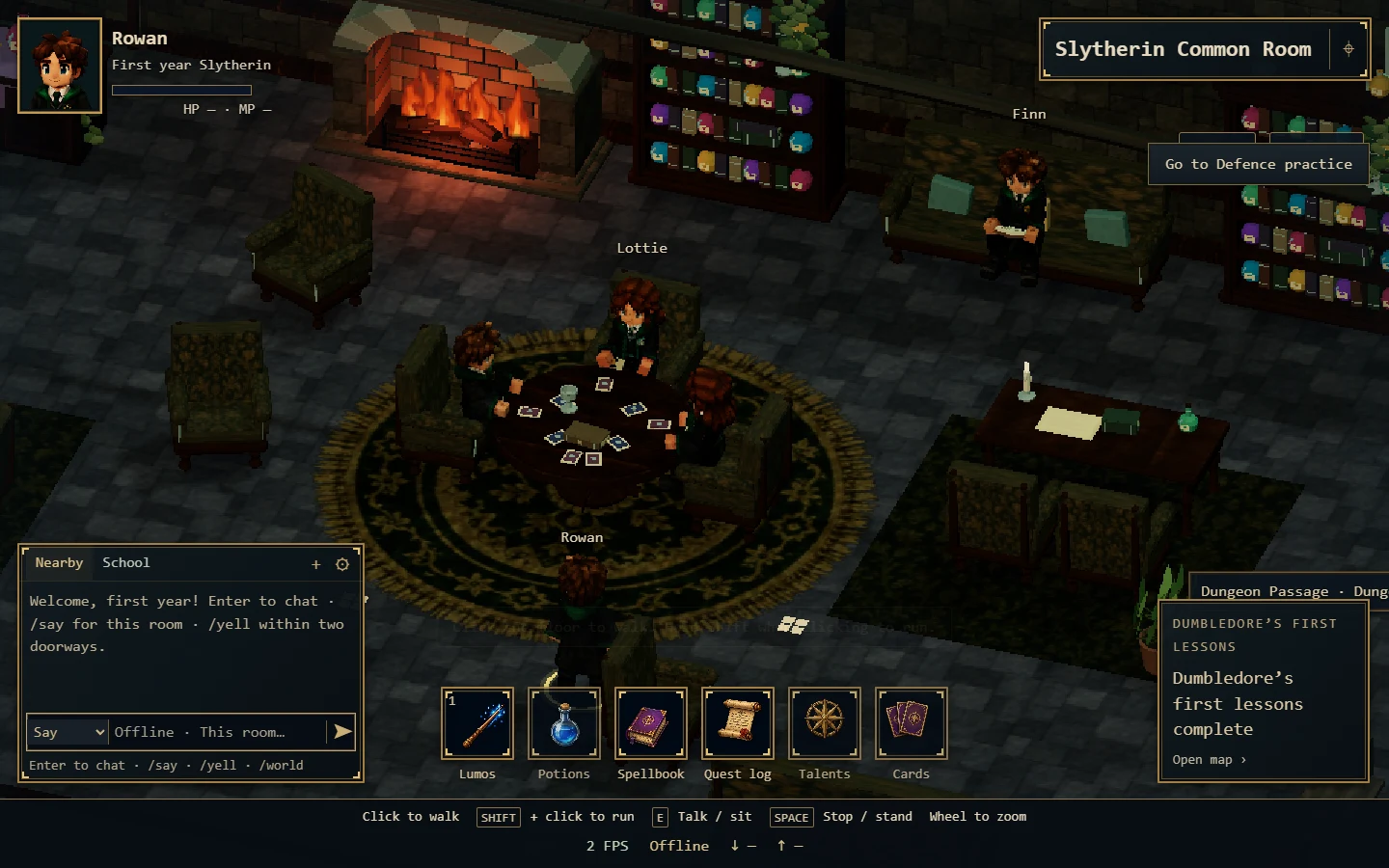
- Choose a Gryffindor or Slytherin student. There are four models, and your account can save up to four students.
Choose Remember me if you’d like to stay signed in for 30 days. Use the same email in the browser or Windows client to find your saved students.
Prefer a quiet visit? Offline Hogwarts lets you explore on your own. Its students are saved on that device.
02 · Find your feet
A stroll through the castle.
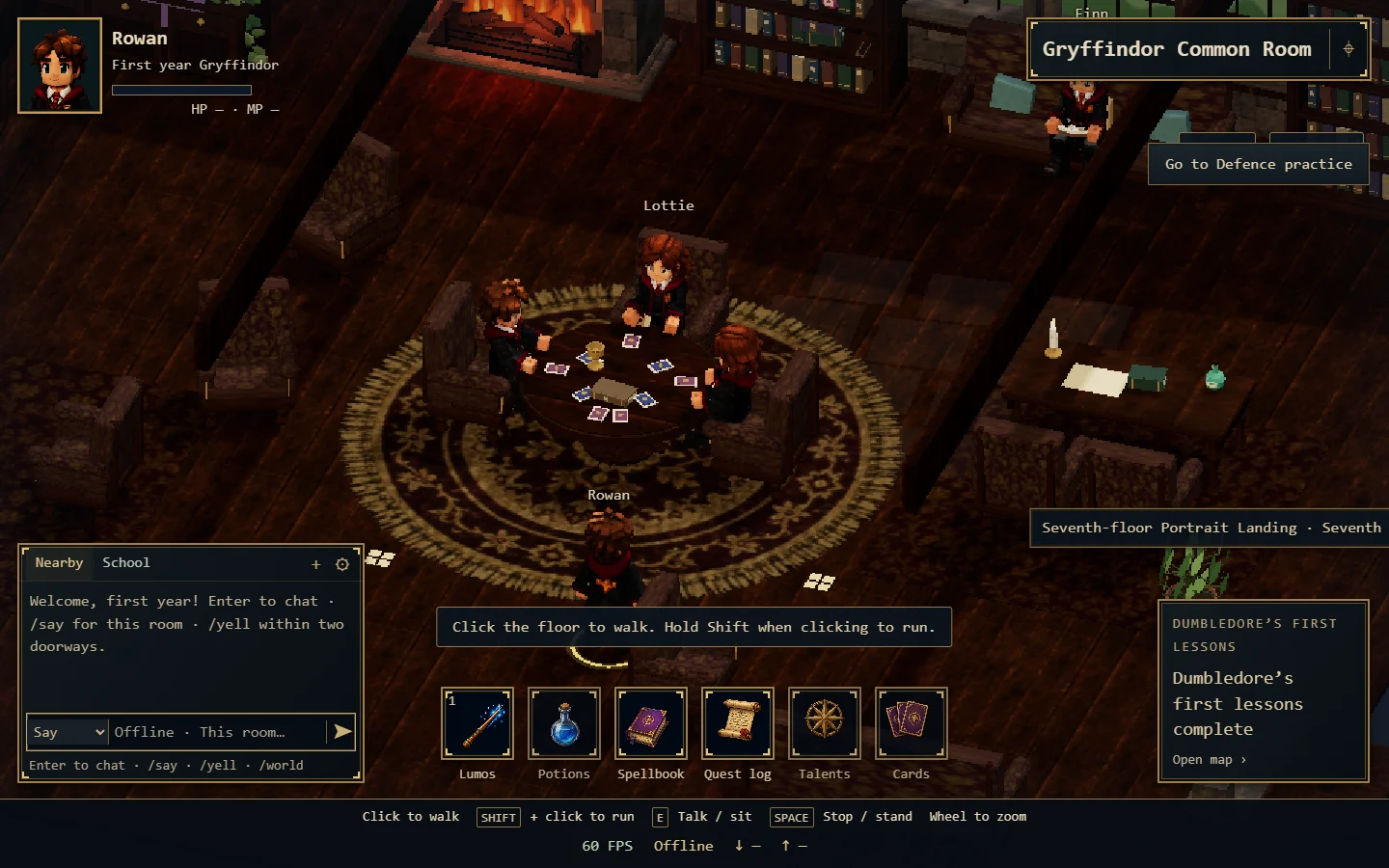
- Click the floor
- Walk to that spot. Your student finds a path around the furniture.
- Shift + click
- Run to your destination.
- Click a doorway
- Walk over and enter the next room or staircase.
- Click a chair or bench
- Walk over and sit if the seat is free. E also uses a nearby seat or interaction.
- Space
- Stop walking or stand up. Clicking the floor also leaves your seat.
- Mouse wheel
- Zoom in or out.
03 · Better with company
Say hello. Bring a friend.
Press Enter to focus the chat, type your message, then press Enter again to send. Choose a channel in the chat box, or use a command:
/say Hello!- Talk to students in your room.
/world Hello!- Talk across the online school.
/group Ready?- Talk privately with your group.
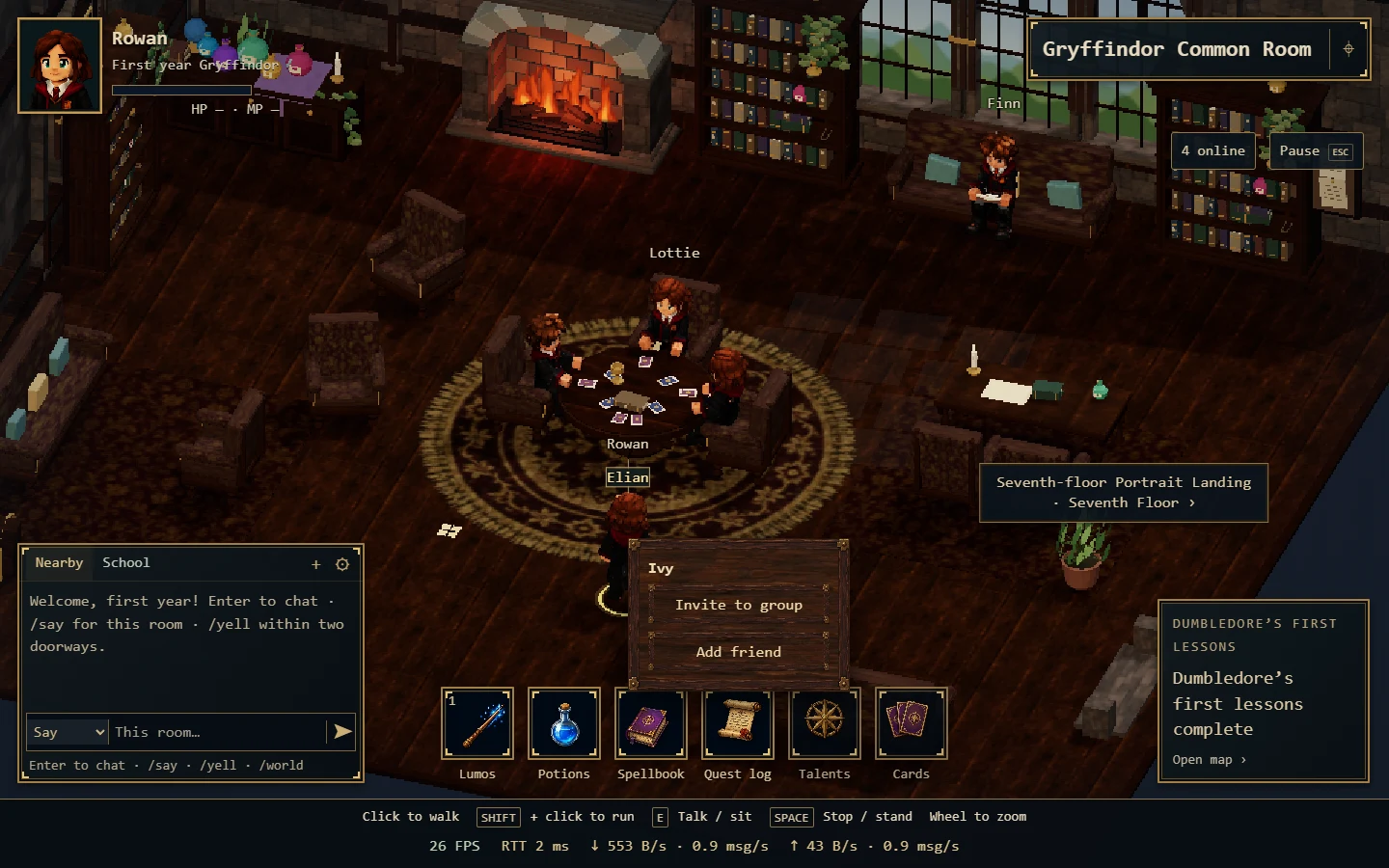
Invite someone to your group
- Right-click another player and choose Invite to group.
- They choose Accept on their invitation.
- Their portrait appears beneath yours. Use
/groupfor your shared conversation.
A group holds up to four players, including you. Click the online count to see the school’s players. You can also choose Add friend from a player’s menu. No acceptance is needed. Your friend list follows the same student between browser and app. Old device lists can be imported from Students & friends.
04 · A little magic
Keep your notebook close.
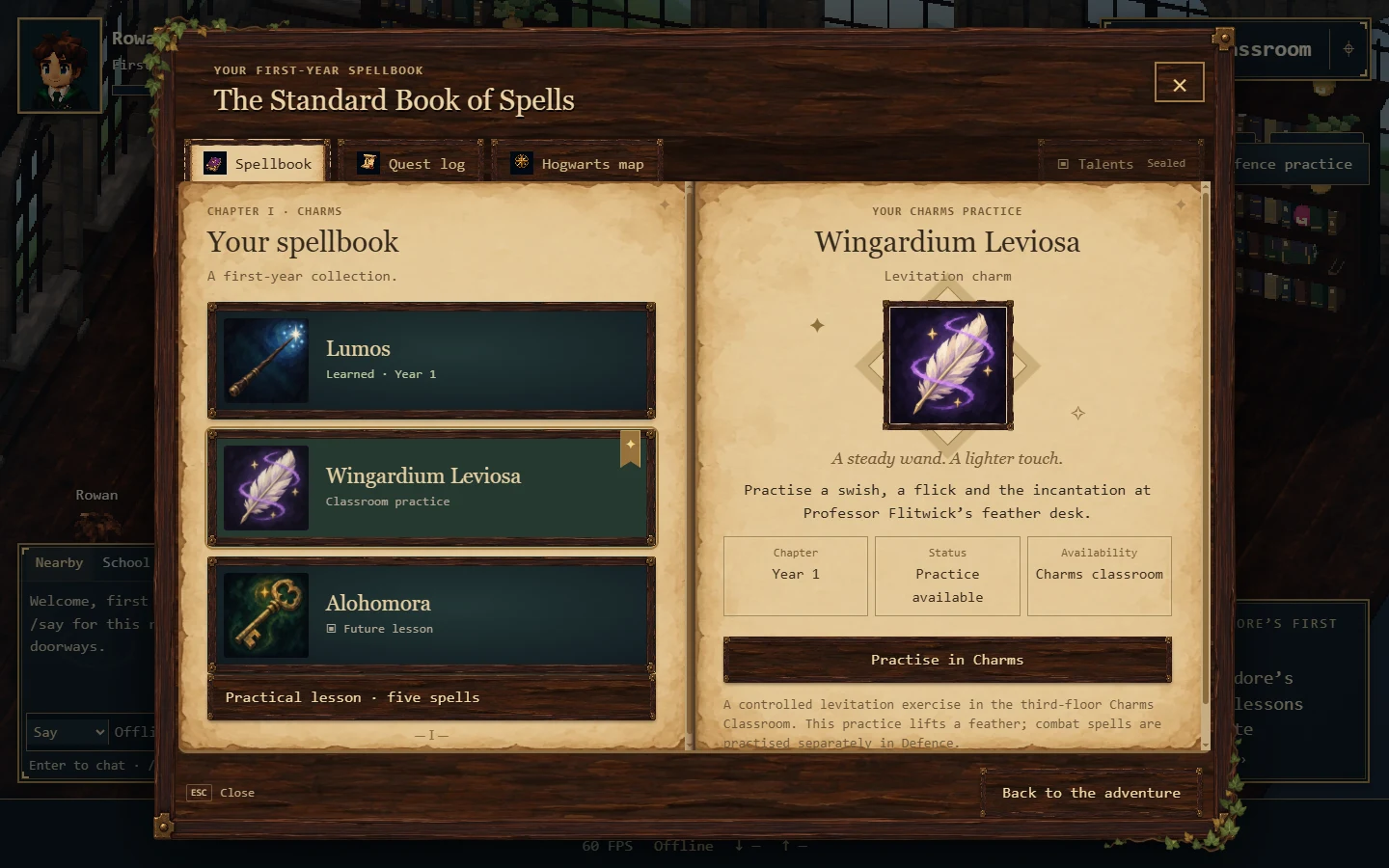
Click Spellbook in the bar at the bottom of the game to open your book. Select a spell to read about it and see its available action.
- Spellbook: browse your charms, including Lumos.
- Quest log: see your current objectives and where to go next.
- Hogwarts map: explore the castle’s rooms and choose where to walk.
Talk to Dumbledore in the Entrance Hall to begin finding your way around the school.
Hogwarts is still growing. Some lessons and features shown in the notebook are not yet available in Open Hogwarts.
05 · Learn together
Look after your classmates.
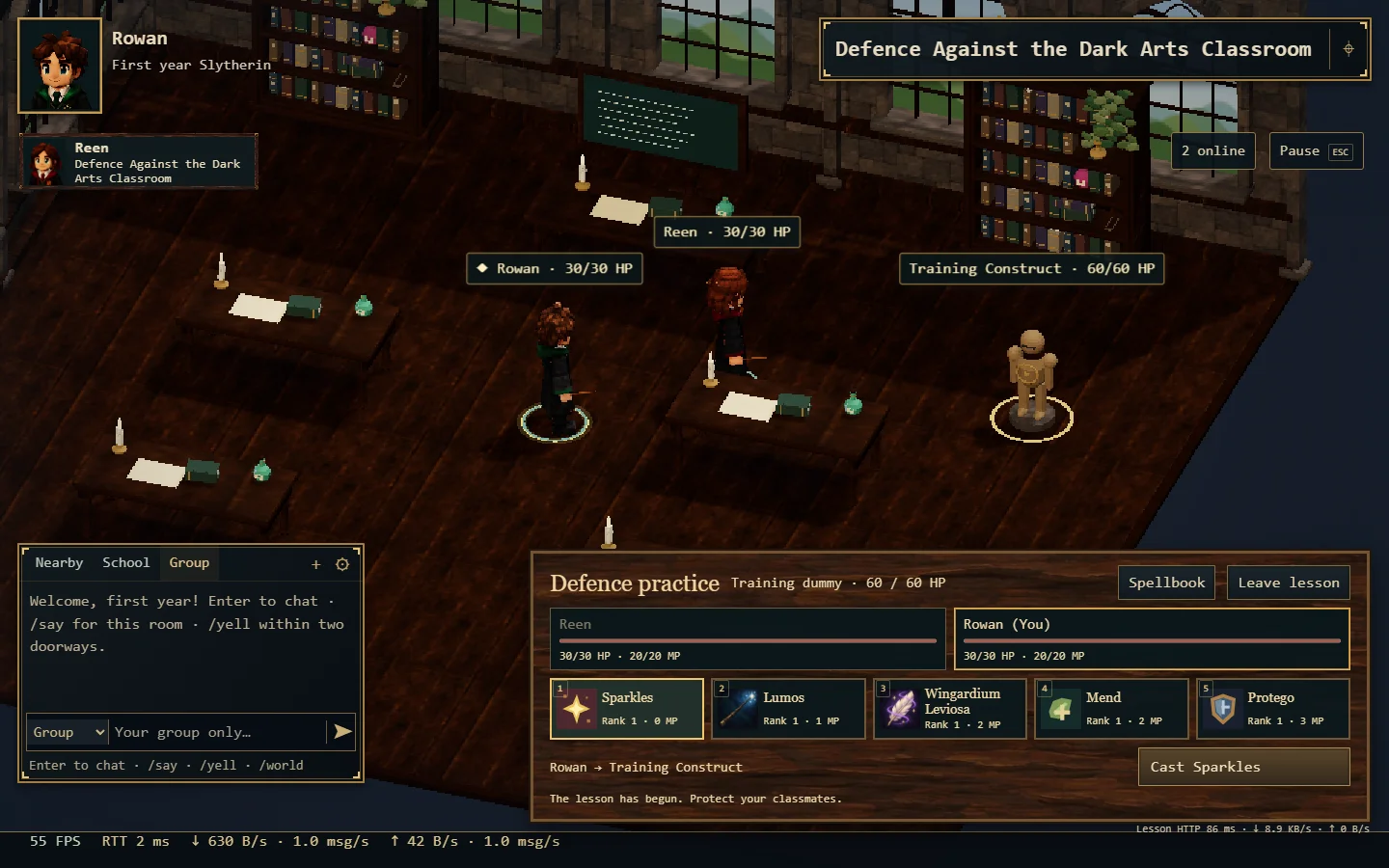
- Finish Dumbledore’s school tour, then visit the Defence classroom.
- Form a group and bring everyone into the classroom.
- Each student opens Defence practice → Group and marks ready. The leader starts.
- Select your spell and target, then cast. You control your own student; Mend can help an injured classmate.
At zero health, you are taken to Madam Pomfrey. Your surviving classmates can continue. Rest to recover; if their encounter is still running, wait for it to finish before leaving.
The encounter continues while a notebook is open or a client disconnects. Use group chat to coordinate.
06 · A little patience
Leave something simmering.
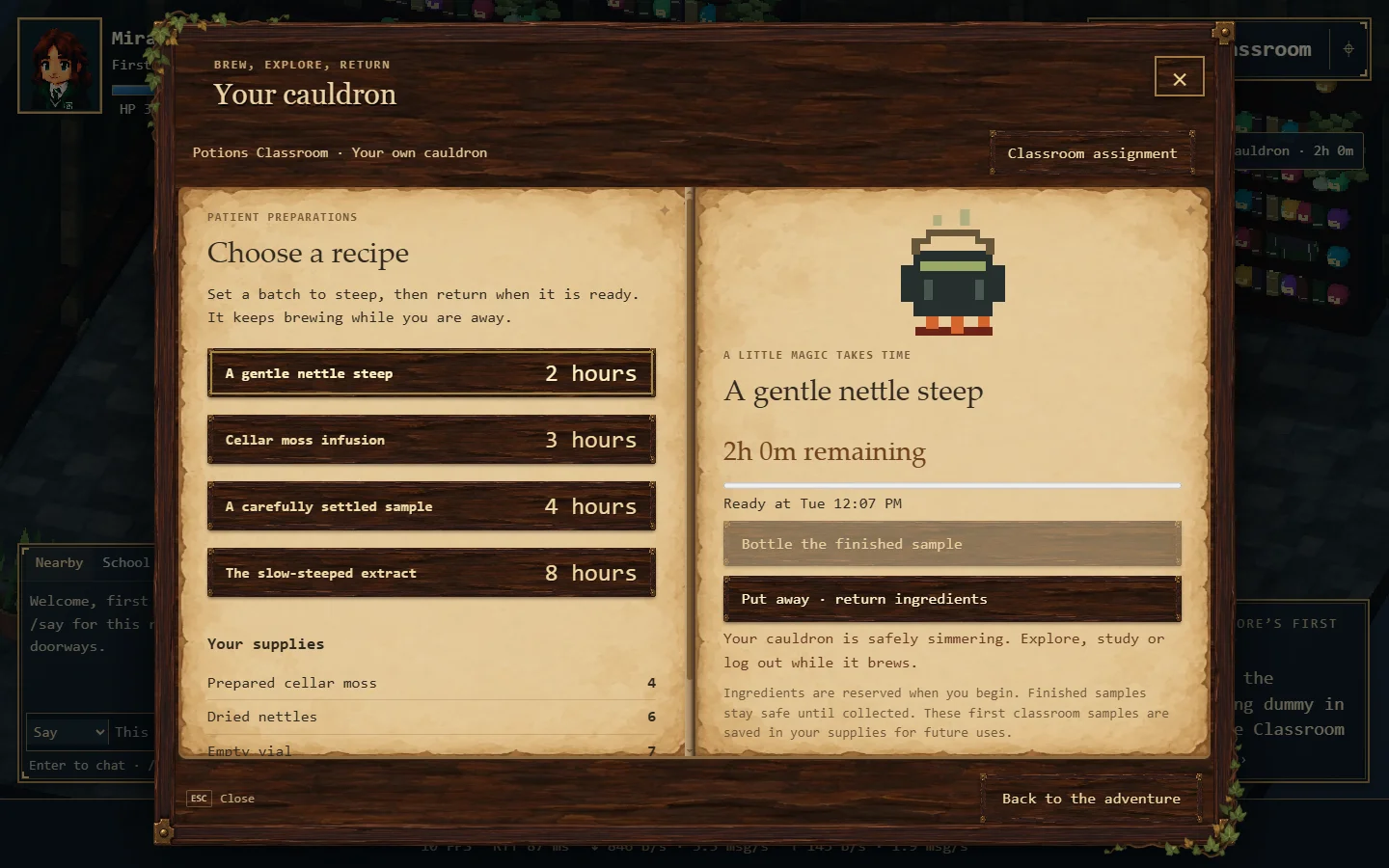
- Visit Potions Classroom. Open Potions → Your cauldron.
- Collect your starter supplies and walk to the marked workbench.
- Choose a preparation lasting 2, 3, 4 or 8 hours and begin.
- Explore or log out. Return after the deadline to bottle the finished sample.
Your batch continues while you are away and stays safe until collected. Putting a batch away returns its reserved ingredients. There are no paid speedups.
These first samples are saved for later classroom uses. Trading and a wider supply system are still being developed.
07 · Put it into words
Bring back a story to tell.
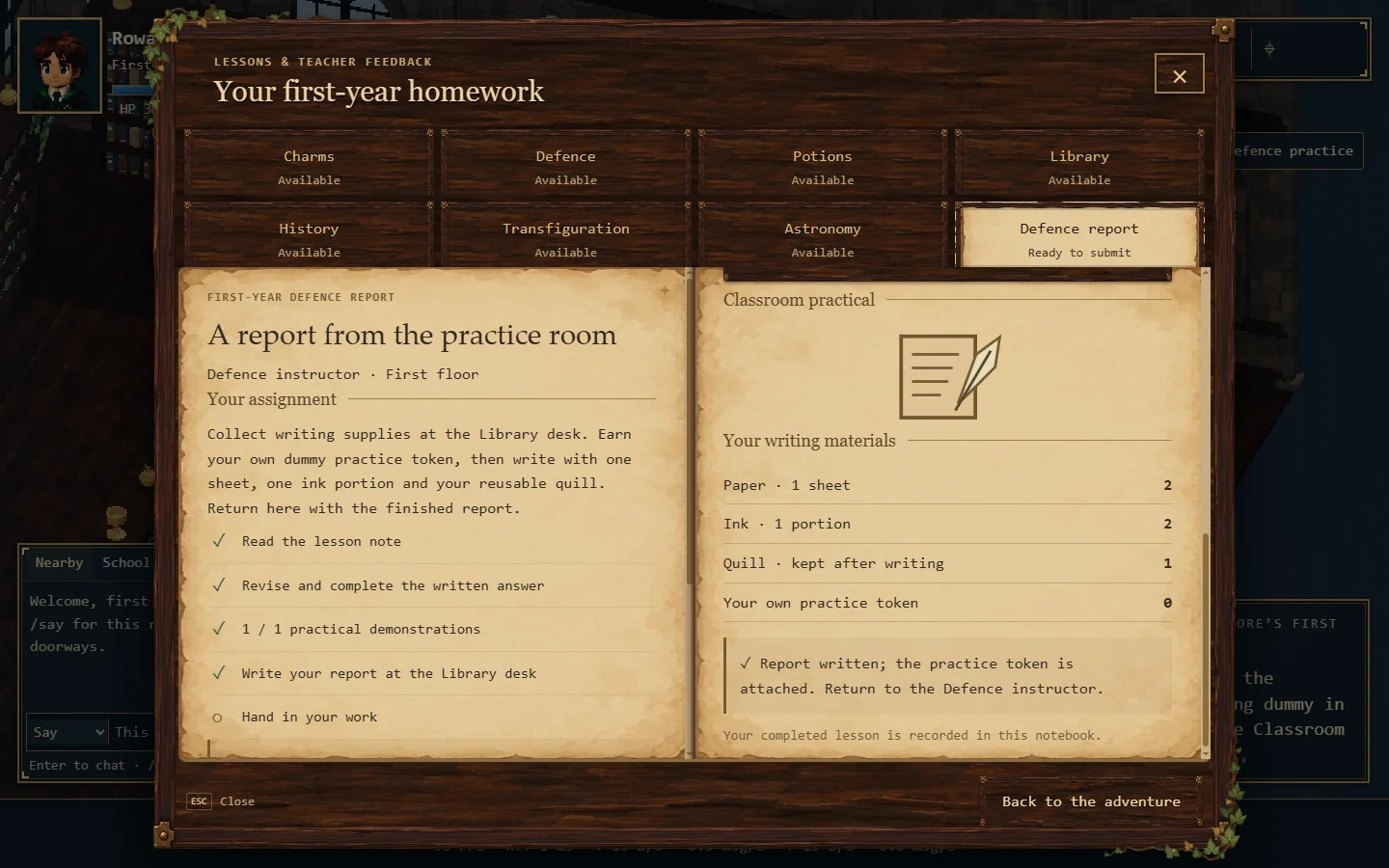
- In Defence, open Quest log → First-year homework → Defence report and accept.
- Read the note and answer its question. Collect a writing kit at the Library desk on the fourth floor.
- Win a new supervised dummy lesson, cast at least one spell yourself and finish conscious to earn your own practice token.
- At the Library desk, write with one sheet, one ink portion and your token. Your quill is kept.
- Return to the Defence instructor and hand in the report.
Classmates who meet the requirements receive their own token. You never need to race someone for the last hit or a shared piece of loot.